Last month I pushed a setup guide with six screenshots, opened the README on my laptop, and every single image looked like it had been smeared with vaseline. Not my first time either. UI labels are soft, the terminal output is a guessing game, and next to all that crisp Markdown it looks pretty sloppy. The capture itself was fine, it’s what happened after that wrecked it, a resize here, a JPEG there. That part is fixable and it’s mostly what this post covers. Then there are the leftovers you can’t redo, like that capture from a guy who quit two years ago, and for those an online unblur image tool is usually enough to make them readable again.
Why Screenshots Go Blurry in Docs
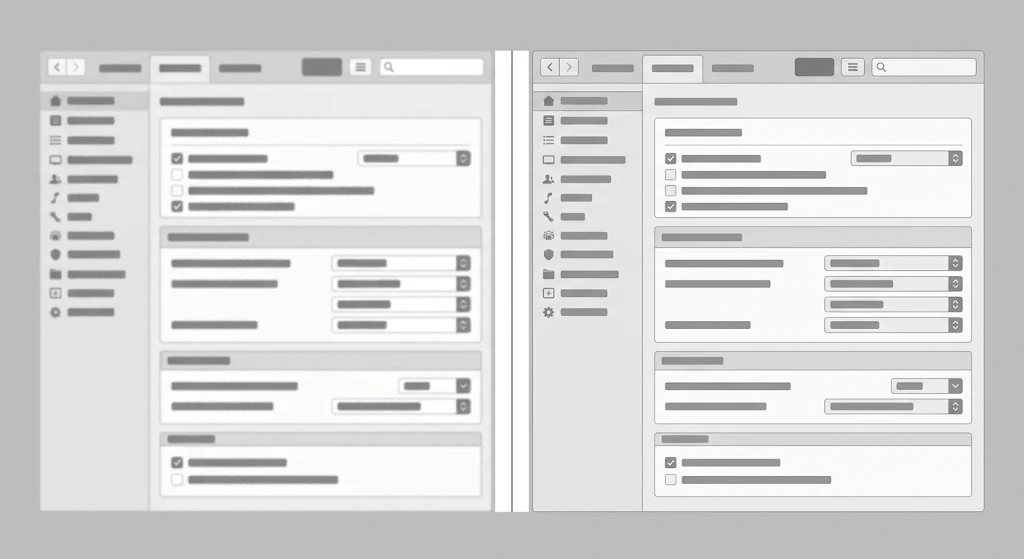
It’s rarely just one thing, usually two or three piled on top of each other.
Scaling does the most damage. A 2400 px screenshot in a README column that’s maybe a third of that? The browser squeezes it and tiny UI text just turns to mush. Flip it around and you get the same mess, a 1x capture from some old office monitor opened on a Retina laptop gets stretched, and stretched means soft.
Then compression. Somebody pastes the image into Slack (or Teams, Notion, Jira, take your pick), a week later someone else downloads it, and surprise, it’s a JPEG now. Fine for beach photos. For text it’s terrible, you get those little fuzzy halos on every letter.
Windows users get a bonus problem. With display scaling at 125% or 150%, some older apps render a bit blurry to begin with, and the screenshot just captures that blur faithfully. Oh, and resizing in an image editor by some odd amount like 73% softens every single edge a little.
Capture It Right the First Time
My number one habit: shoot at 2x pixel density. A Mac with a Retina screen does it on its own. On a plain 1x monitor you can get the browser to do it, in Chrome open DevTools, switch on the device toolbar, set the device pixel ratio to 2, then run “Capture screenshot” from the command menu. Firefox is even quicker, type :screenshot –dpr 2 into the DevTools console and you’re done.
I crop, I don’t resize. Shift-Command-4 on the Mac or Win+Shift+S on Windows lets you grab only the bit you want, or you crop later. Need it smaller anyway? Exactly 50% then, never some random number, because at half size the pixels still line up.
PNG, always. Text stays sharp in PNG, and flat-colored UI screenshots compress better than people expect. Worried about repo size? Throw the file at oxipng or pngquant before you’d ever consider JPEG.
Display It at the Right Size
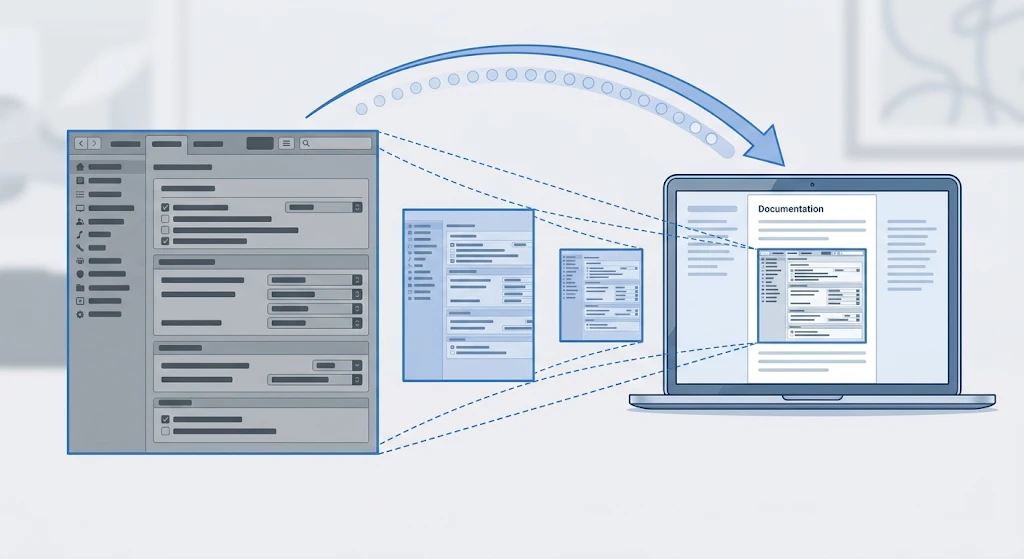
Weirdly few people know this one. Show a 2x screenshot at half its real width and it’s crisp on fancy screens and normal-sized on regular ones. Markdown’s image syntax has no width option, but GitHub renders plain HTML img tags just fine, so a 1200 px capture becomes <img src=”docs/setup.png” width=”600″ alt=”Settings page with the API key field highlighted”>.
Docusaurus, MkDocs, Confluence, they all let you set the display width somehow. Do it. When the platform guesses, it guesses badly.
And please write real alt text. Screen reader users need it, and six months from now it’ll tell whoever maintains the docs what the screenshot was meant to show once it’s broken.
Stop Screenshotting Code
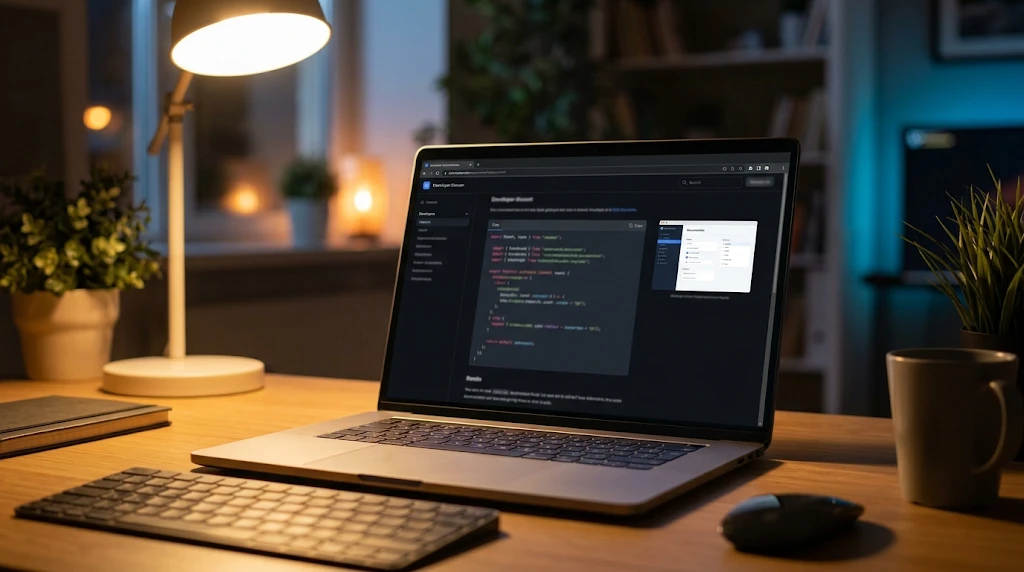
Honestly, this alone fixes about half the blurry READMEs I’ve come across. Terminal command, config file, code snippet? That’s text, so treat it like text and use a fenced code block. Sharp at any zoom, searchable, copyable, and dark mode doesn’t make it look odd. Save screenshots for stuff that’s actually visual, a UI layout, a chart, where a button sits on a page.
Rescuing Screenshots You Can’t Retake
Sometimes there’s no going back. The app got updated, staging was torn down, or the only copy is a compressed JPEG attached to a closed ticket. That’s when an AI deblurring tool is worth trying, it sharpens soft edges and cleans up the JPEG halos, and UI labels usually become readable again.
One warning. Sharpening can make a fuzzy letter crisp and also wrong, I’ve seen a lowercase l come out as a 1, so check the text against what you know. I wouldn’t trust a deblurred image for version numbers or error codes, anything someone might copy. Retake it when you get the chance.
A Quick Checklist Before You Commit
My pre-merge ritual is dumb but it works. Open the README on GitHub, look at it on my old monitor and my laptop, zoom to 200%. Text still clean? Ship it. Blurry? Then the file got scaled, became a JPEG, or is shown wider than it really is, it’s basically always one of those.
Final Thoughts
So yeah, it’s the workflow, not the camera. 2x capture, crop instead of resize, PNG, half-width display, code blocks for code. And for the ancient screenshots nobody can redo, run them through a deblurring tool and move on with your life.