Ever tried creating an image with AI but didn’t get quite what you were imagining? The secret lies in writing clear, detailed prompts. Creating precise prompts helps you get amazing results from AI image generation tools. This guide will show you how to write effective prompts using the AI Image Prompt Generator, a powerful tool designed to simplify and enhance your AI art creations.
Why Writing Effective Prompts Matters?
AI image tools are fantastic, but they can’t read minds—yet! They rely completely on the prompts you provide. The better your prompts, the closer the generated images match your imagination. Writing effective prompts helps the AI understand exactly what you want, saving you time and frustration.
Experimenting with different AI prompt examples can inspire creative, accurate, and visually stunning outputs.
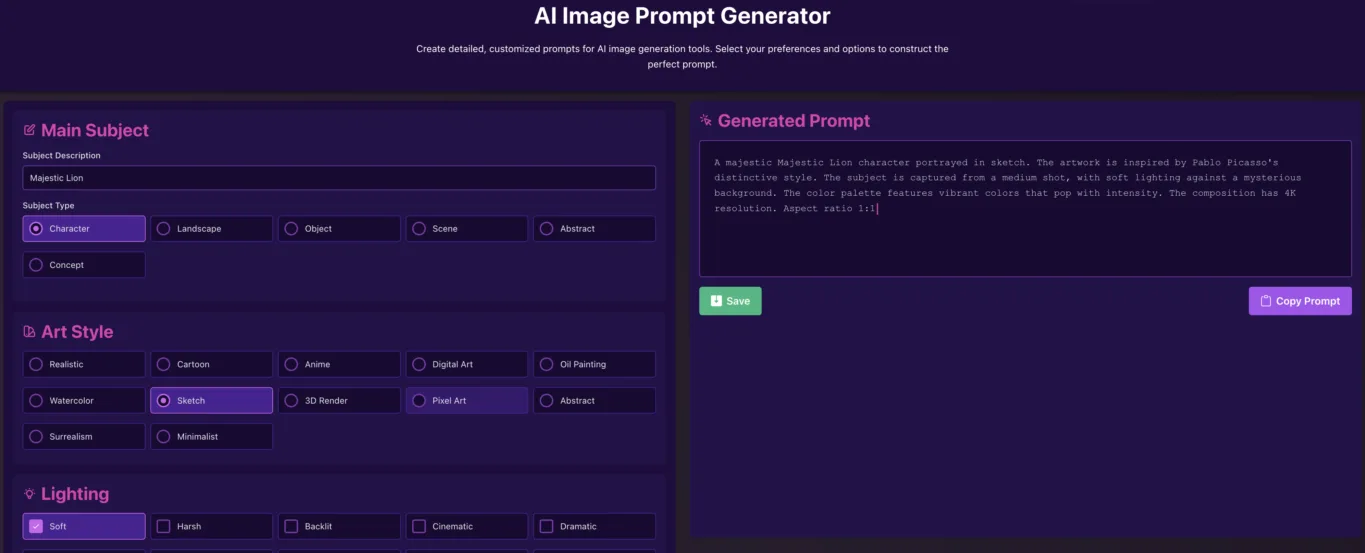
Here’s how you can use the AI Image Prompt Generator to create detailed, customized prompts easily:
Step-by-Step Guide to Using the AI Image Prompt Generator
1. Clearly Define Your Main Subject and Description
Start by clearly defining your main subject. The AI Image Prompt Generator gives you a dedicated area to describe your subject in detail. For example:
- “A majestic dragon soaring above clouds”
- “A futuristic city illuminated at night”
- “A serene landscape with mountains and lakes”
The more descriptive you are, the better.
2. Choose Your Subject Type
Select the best-fitting category for your subject from these options:
- Character (e.g., a person, animal, or creature)
- Landscape (e.g., nature scenes, urban skylines)
- Object (e.g., vehicles, tools, or items)
- Scene (e.g., situations, interactions, or events)
- Abstract (e.g., shapes, patterns, or concepts)
- Concept (e.g., ideas, emotions, symbolic elements)
Selecting the right type helps AI better interpret your prompt.
3. Pick Your Preferred Art Style
Art style significantly impacts the look and feel of the generated image. Choose among:
- Realistic
- Cartoon
- Anime
- Digital Art
- Oil Painting
- Watercolor
- Sketch
- 3D Render
- Pixel Art
- Abstract
- Surrealism
- Minimalist
Matching your art style to your vision helps ensure precision and satisfaction with the result.
4. Experiment with Lighting Options
Lighting dramatically influences mood and realism. The AI Image Prompt Generator includes these options:
- Soft
- Harsh
- Backlit
- Cinematic
- Dramatic
- Atmospheric
- Volumetric
- Neon
- Studio
- Natural
For example, “soft lighting” creates calm visuals, while “dramatic lighting” creates intensity and contrast.
5. Set the Mood & Atmosphere
Mood and atmosphere set the emotional tone for your image. Choose among:
- Peaceful
- Mysterious
- Ethereal
- Dystopian
- Utopian
- Dreamy
- Whimsical
- Dark
- Vibrant
- Melancholic
Clearly expressing the mood ensures the AI generates images aligned with your intended feel.
6. Decide on Composition
Composition determines how your subject appears visually within the frame. Options include:
- Close-up (focusing closely on details)
- Medium Shot (showing the subject with some environment)
- Wide Shot (showing subject and broad surroundings)
- Aerial View (viewed from above)
- Bird’s Eye (directly overhead)
- Worm’s Eye (viewed from below)
- Panoramic (wide-angle)
- Isometric (3D perspective)
Composition choice guides the AI to frame your image precisely.
7. Select Your Color Palette
Color profoundly impacts the visual impression. Options available are:
- Vibrant
- Muted
- Pastel
- Monochrome
- Sepia
- High Contrast
- Neon
- No Preference
Be strategic; for example, “pastel” palettes create softer visuals, while “neon” palettes are bold and energetic.
8. Add Quality Modifiers
Enhance image clarity and detail with quality modifiers, including:
- HD
- 4K
- 8K
- Detailed
- Sharp Focus
- Bokeh
- Ray Tracing
- ArtStation (specific artistic quality)
These modifiers ensure professional-quality results.
9. Specify Technical Specifications
Pick the best aspect ratio for your image:
- 1:1 (Square)
- 3:4 (Portrait)
- 4:3 (Landscape)
- 16:9 (Widescreen)
- 9:16 (Mobile)
- 21:9 (Ultrawide)
- 2:3
- No Preference
You can also add additional technical specs like “film grain,” “HDR,” “unreal engine,” or “octane render” to further refine your prompt.
10. Include Artist Influence (Optional)
If you want your image to reflect the style of a famous artist, select from:
- Picasso
- Van Gogh
- Monet
- Dali
- Klimt
- Warhol
- Giger
- Miyazaki
- Mucha
- Rutkowski
This helps the AI apply recognizable artistic styles.
11. Add Additional Tags and Emphasis
Include custom tags to further refine your prompt, like “fantasy,” “steampunk,” or “cyberpunk.” You can also emphasize key elements using double parentheses, e.g., ((beautiful eyes)) or ((cybernetic arm)), to guide the AI’s focus.
Generate, Save, and Copy Your Prompt
Once all selections are made, simply click “Generate Prompt.” Your fully customized prompt will appear, ready to copy, save, and use instantly.
Want to explore diverse ideas? Use the “Randomize Options” button to spark your creativity. To start fresh, click “Reset All.”
Ready to Create Stunning AI Images?
Now you know how to Write Effective Prompts for Precise AI Image Generation using the AI Prompt Generator for Images. Clearly communicating your ideas through detailed prompts is the key to unlocking AI’s full creative potential.
Try out the AI Image Prompt Generator and see how easy and fun creating precise AI-generated images can be!