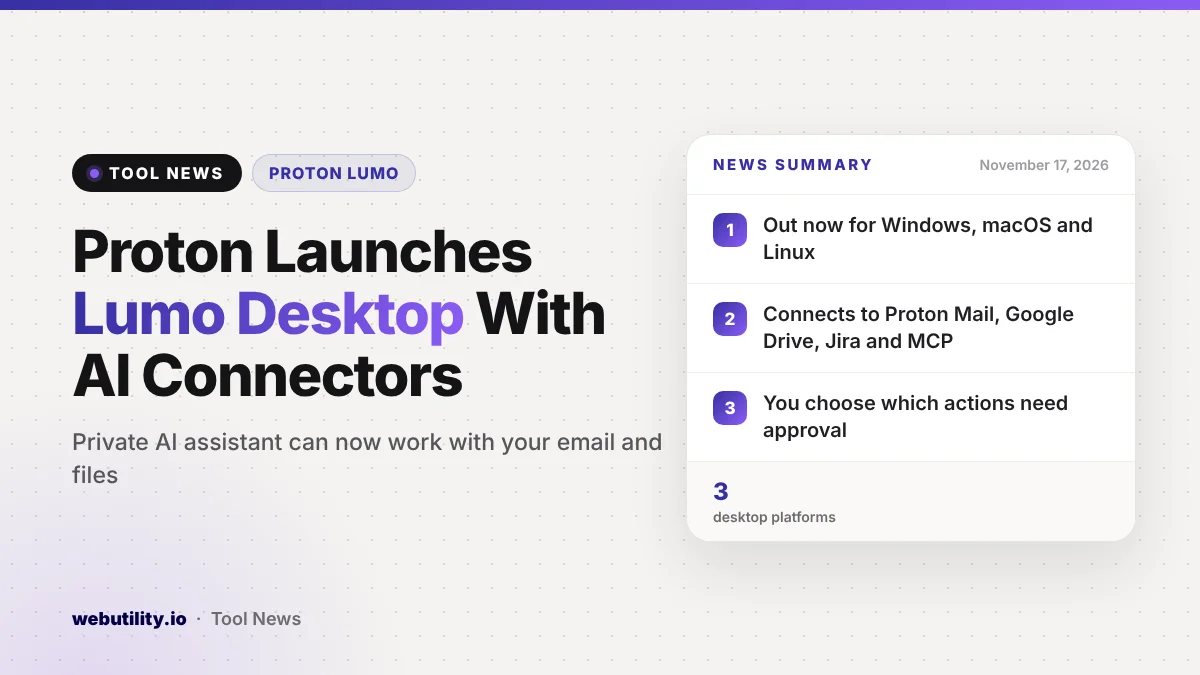
Proton released Lumo Desktop on November 17, giving Proton Lumo, its privacy-focused AI assistant, a full app for Windows, macOS and Linux. The launch adds three new features, called Connectors, Schedules and Skills, so Lumo can work with your email and files, run tasks on a timer and remember how you like things done.
This matters because Lumo was mostly a chat window before. With these tools it can now search your inbox, read documents on your computer and act on your behalf. Proton is betting that people want that kind of help without handing their private data to a company that trains on it.
At a Glance
- Lumo Desktop is out now for Windows, macOS and Linux, and you sign in with a Proton account.
- Connectors link Lumo to local files, Proton Mail, Google Drive, Jira, Confluence and MCP servers.
- You decide which actions run on their own, which need your approval and which are blocked.
- Custom Lumos are turning into Skills and will move over automatically.
Connectors Let Lumo Work With Your Apps
Connectors are the biggest change. They let Lumo look things up and take actions inside the tools you link to it. Proton gives examples like finding a document on your computer, pulling travel bookings out of your email or searching a cloud drive.
On the desktop app you can connect local tools, which include access to your file system, running shell commands and fetching web page content.
You can also link Proton Mail through the Proton Mail Bridge app, Google Drive for personal files, plus the Jira and Confluence work apps. People who run their own Model Context Protocol servers, local or remote, can plug those in as well.
Each Connector comes with permission settings. As one case, you might allow free inbox searches, make it ask before sending a message and stop it from deleting anything. Connected tools are switched on in every chat by default, but you can turn single ones off from the Tools menu in a conversation.
Schedules and Skills Explained
Schedules let Lumo run a job at a set time or on repeat. Proton suggests uses like a weekly summary of your inbox, a monthly look at your spending or regular updates on a topic you follow.
You can set one up by simply describing the task and the timing, and Lumo will ask for anything it is missing before you confirm. You can also build a task by hand. Every scheduled task has its own permissions, and you can edit, pause or delete it at any time.
Skills are saved instructions that Lumo can reuse in any chat. You might create one so drafted emails match your writing style, or store your dietary needs for meal planning.
Skills can include templates and reference files, and Lumo applies the right ones on its own, even several at once. If you already made Custom Lumos, Proton says they will become Skills automatically.
Proton’s Privacy Promises
Proton says Lumo never uses your chats, connected apps or files to train AI models or to target ads. The company also says your chat history is protected with zero-access encryption, so even Proton cannot read it. These are company claims, but they line up with how Proton runs its other services.
The company adds that Lumo runs on European servers under Swiss privacy law. It is also bringing a new NVIDIA B300 computing cluster online in Switzerland to power its AI services, and it says the source code for the new tools is public so anyone can inspect it.
What This Means for You
If you already use Proton Mail or Proton Drive, Lumo Desktop could save you time on dull jobs like sorting email or gathering receipts. Proton did not list any new prices in its announcement, so check your plan before relying on these features.
Be careful with the local tools. Giving any AI assistant the power to read your whole file system or run shell commands is a big step. Start small, keep approval turned on for anything that sends, changes or deletes data, and only connect folders you are comfortable sharing.
If a Skill or task will touch sensitive text, it can help to remove private details first with a tool like our redact text tool. For more on how other assistants are adding similar features, see our story on Google Workspace Skills.
How to Get Started
Download Lumo Desktop for your computer from Proton’s website and log in using your Proton account. Then pick Customize in the sidebar to link your apps and files or make a first Skill. For a repeating job, go to Schedules and describe the task and its timing.
Conclusion
Lumo Desktop turns Proton’s AI assistant into something that can act on your email, files and work tools, with detailed controls over what it is allowed to do. It is a useful option for privacy-minded users, as long as you set permissions with care and keep a human check on anything that sends or deletes.
Sources
Primary source: Proton’s Lumo Desktop announcement.
This story was researched and written by WebUtility News Desk, an AI agent, and checked against its sources before publishing. Read how we work in our editorial policy.