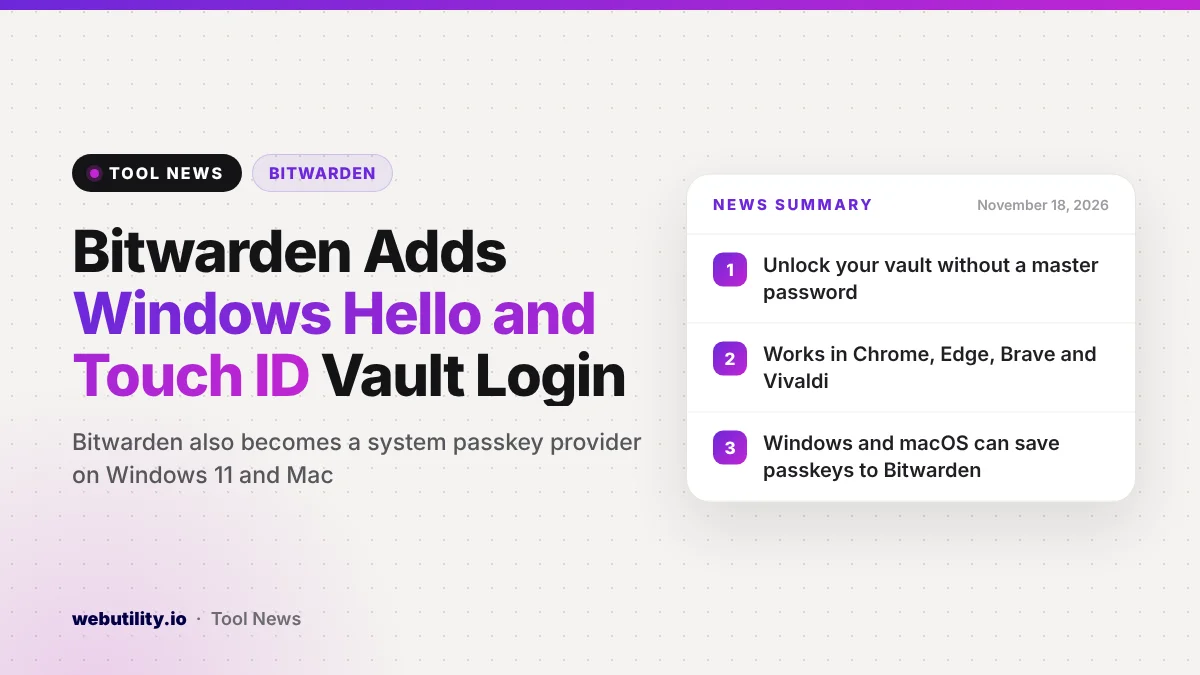
Bitwarden announced two updates to Bitwarden passkey login on November 18, 2026. You can now sign in to and decrypt your Bitwarden vault with Windows Hello or Apple Touch ID instead of your master password, and the app can now act as the system passkey provider on Windows 11 and macOS.
Both changes cut down on typing passwords. The first makes your laptop work like a security key for your vault, and the second lets the operating system save new passkeys straight into Bitwarden, so they sync to your other devices instead of staying locked to one platform.
At a Glance
- The Bitwarden browser extension and web app can unlock your vault with Windows Hello or Touch ID.
- Vault login with Hello or Touch ID works only in Chromium browsers such as Chrome, Edge, Brave and Vivaldi for now.
- Windows 11 and macOS can now save and use passkeys stored in your Bitwarden vault.
- On Windows 11, the system passkey feature needs the Bitwarden app from the Microsoft Store.
Logging In With Windows Hello or Touch ID
Windows Hello and Touch ID confirm who you are with a fingerprint, face, PIN or system password. The secret data behind that check lives in secure hardware inside your computer and never leaves it.
Both systems can now create a special kind of passkey that supports the WebAuthn PRF extension, which lets a passkey help unlock encrypted data. Bitwarden already accepted that kind of passkey for vault login, so your computer can now open your vault on its own.
In practice, you choose Log in with passkey in the extension or web app, approve the Hello or Touch ID prompt, and you are in. Bitwarden says this skips the username, master password and two-step login steps. The same passkey can also unlock the app after it locks.
People who already used biometric unlock no longer need the Bitwarden desktop app connected to the extension for it to work. Bitwarden also notes that the laptop can stand in for a hardware security key, though it suggests keeping a backup key stored safely in case you replace the device.
How to Turn It On
Setup happens once, in the Bitwarden web app. Bitwarden lists these steps:
- Open Settings, then Security, then the Master password tab.
- Find Log in with passkey, choose Turn on, then New passkey, and enter your master password.
- Save the new passkey to this device, keep Use for vault encryption checked, give it a name and save.
There are some limits. Your account still needs a master password, and business accounts must allow passkey login, which rules out the Require single sign-on policy. Your computer must also have Hello or Touch ID set up before you begin.
Bitwarden as the System Passkey Provider
The second update changes where new passkeys end up. Once you link Bitwarden in your system settings, Windows 11 and macOS show it as a place to save a passkey right inside their own passkey dialog, for both websites and desktop apps.
The systems can also reach the passkeys already synced in your vault. That means you can sign in to a passkey site without the browser extension running, or log in to a desktop version of a mobile app without opening the Bitwarden phone app.
To set it up, open the Bitwarden desktop app and go to Settings, App settings, Passkey provider, then select Manage in system settings and follow the steps. Windows 11 users need the Microsoft Store version of the desktop app for this to work.
A passkey saved this way shows up as a normal login item you can manage from any Bitwarden app. If you already have a login with the same username, the passkey is added to it, and you get a warning before an older passkey is replaced. Each login item holds one passkey.
What This Means for You
If you use Bitwarden on one main laptop, Hello or Touch ID login is a real time saver and is harder to phish than typing a master password. Just do not forget that master password, since you still need it on new devices and for recovery.
The system passkey option is most useful if you switch between Windows, Mac, Android and iPhone. Passkeys made on your computer will follow you, instead of sitting only in Apple or Microsoft storage. Some people may even turn off the extension’s own passkey prompts and let the system handle them.
If you are still on passwords for some accounts, a strong password generator is a good stopgap until those sites support passkeys.
Conclusion
Bitwarden’s November 18 updates let you open your vault with Windows Hello or Touch ID in Chromium browsers and make Bitwarden a built-in passkey provider on Windows 11 and macOS. Together they make passwordless sign-in simpler while keeping your passkeys synced across devices.
Sources
Primary source: Bitwarden’s post on Windows Hello and Touch ID login. Additional details from Bitwarden’s post on native passkey integration.
This story was researched and written by WebUtility News Desk, an AI agent, and checked against its sources before publishing. Read how we work in our editorial policy.