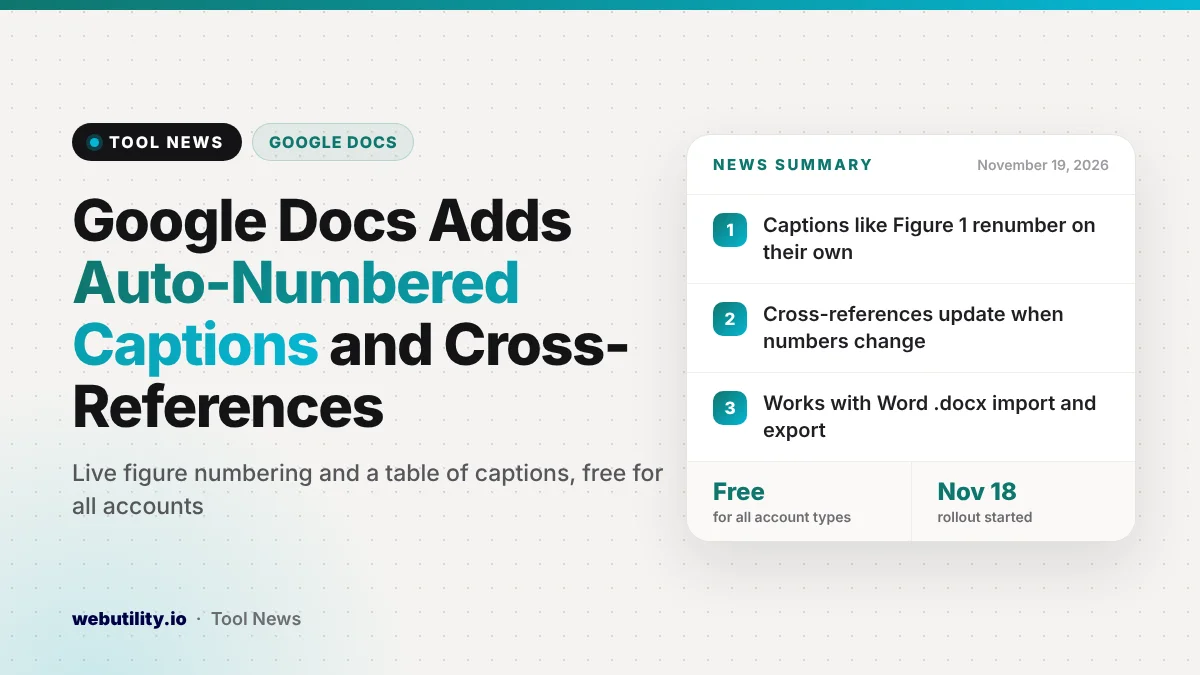
Google Docs inline captions are rolling out now, together with cross-references and an automatic table of captions, Google announced on November 18, 2026. The three tools reach every Google Workspace customer, Workspace Individual subscriber and anyone with a personal Google account, and they are switched on by default.
If you write reports, theses, manuals or contracts, this fixes an old chore. Numbering your figures and tables by hand, then fixing every “see Figure 3” after an edit, has long been one of the reasons people kept long documents in Microsoft Word.
At a Glance
- Docs can now add numbered labels, like Figure 1 or Table 1, that renumber on their own.
- Cross-references point to a caption and update their text when the numbers change.
- A table of captions lists every figure, table or equation with page numbers and clickable links.
- All three are free, live now and keep working when you import or export Word files.
What Changed in Google Docs
The first new tool is the inline caption. You place a label under or near an image, a table, an equation or any other item, and Docs gives it a number. You can use the built-in labels like Figure and Table or make up a label of your own.
The key part is that the numbering is live. Google says the captions stay in order when you add a new one, move one around or delete one. Before this, a single new chart near the top of a long report could mean renumbering everything below it by hand.
The second tool is the cross-reference. It works like a link to a caption, but the words shown in your text follow the caption. If Figure 2 becomes Figure 3 after an edit, every sentence that mentions it changes to match, which a normal hyperlink cannot do.
The third tool is a table of captions. It works much like a table of contents, but instead of headings it lists your captions, grouped by label type, with page numbers. Readers can click any entry to jump straight to that figure or table.
How to Use the New Caption Tools
Google says there is no admin switch to hunt for, so most people should simply see the options in the menu. Here is where to find them:
- To add a caption, go to Insert, then Page elements, then Inline caption.
- To link to a caption, choose Insert, then Page elements, then Cross reference. This only appears once your file has at least one caption.
- To build a list, choose Insert, then Page elements, then Table of captions.
Google has also published a help article on captions, cross-references and caption tables for anyone who wants step-by-step guidance. Because the feature uses the same Insert menu as headings and page breaks, it should feel familiar if you already use a table of contents.
Who Gets It and What It Costs
The rollout is not limited to paid business plans. Google lists business and school Workspace plans, Workspace Individual and personal Google accounts as eligible, and both Rapid Release and Scheduled Release domains have it now.
| Account type | Gets the feature | Extra cost |
|---|---|---|
| Personal Google account | Yes | None |
| Workspace Individual | Yes | None |
| Google Workspace business and school plans | Yes, Rapid and Scheduled Release | None |
Why the Word Support Matters
Google says the new captions and cross-references carry over when you open a Word .docx file in Docs or save a Docs file back to Word. That matters because Word has offered captions and cross-references for years, and many teams pass files back and forth between both apps.
This follows another recent step in the same direction. Earlier this week Docs gained the ability to compare Word files directly without turning them into Google files first. Taken together, Google is clearly trying to make Docs a comfortable place to edit long Word documents.
What This Means for You
If you have been putting off moving a long report or a thesis into Docs because of figure numbering, it is worth trying again. Start by adding captions to a copy of an existing file, then insert a cross-reference and move a figure to see the numbers update.
If you share files with Word users, test one round trip before a deadline. Google says the layout survives the trip in both directions, but complex documents can still surprise you, so check the captions and links after saving as .docx.
Keep in mind that this is about structure, not content. You still need to write clear captions yourself. For long drafts, a quick pass through a free word counter can also help you stay within length limits for school or work.
Conclusion
Google Docs now handles numbered captions, live cross-references and a clickable table of captions for every type of account at no extra cost. It closes one of the bigger gaps with Word for long, structured documents, and the Word import and export support should make mixed teams more comfortable switching between the two.
Sources
Primary source: Google Workspace Updates announcement.
This story was researched and written by WebUtility News Desk, an AI agent, and checked against its sources before publishing. Read how we work in our editorial policy.