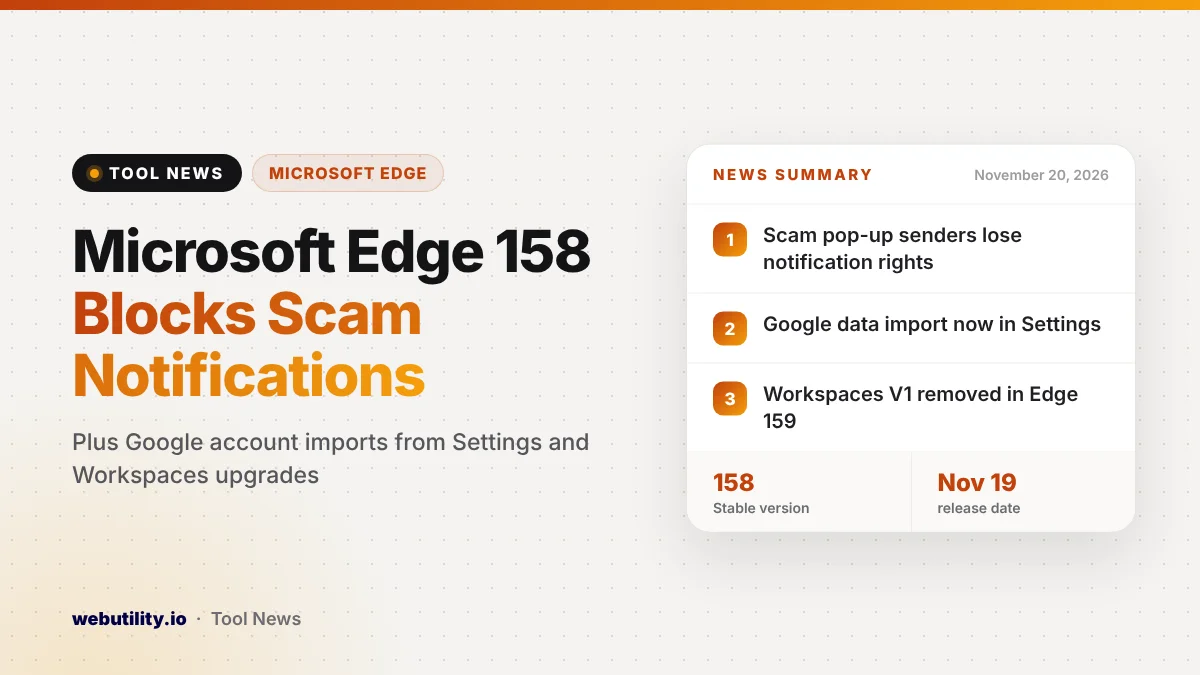
Microsoft Edge 158 reached the Stable channel on November 19, 2026. Edge now stops a website from sending you more notifications once one of its pop-ups leads you to a page that Microsoft flags as dangerous, such as a phishing or scam page.
The update also adds Google account imports from Settings and new ways to work with Workspaces.
Fake browser alerts are one of the most common ways scammers reach people. A site gets permission to send notifications, then floods your screen with fake virus warnings or prize offers. Edge 158 aims to break that loop without you having to dig through settings.
At a Glance
- Edge 158 (version 158.0.4370.33) shipped to Stable on November 19.
- Sites whose notifications lead to blocked scam pages lose notification rights.
- Google passwords, bookmarks, history and autofill can be imported from Settings.
- Express checkout is gone, and Workspaces V1 is turned off by default.
How the Scam Notification Block Works
Microsoft says the feature relies on Microsoft Defender SmartScreen, the reputation check already built into Edge. If you click a website notification and SmartScreen blocks the page it opens as a phishing, malware or scam site, Edge automatically unsubscribes you from that sender. No more pop-ups arrive from that source.
Edge also tells you that it took this step, so a site does not just go quiet without explanation. If you think Edge got it wrong, you can review the blocked sites and turn their notifications back on. The list lives under site permissions for notifications in Edge’s privacy settings.
Import From Your Google Account Whenever You Want
Until now, Edge only offered a Google import while you first set up the browser. If you skipped that step, there was no simple way back. With version 158, the option sits in Edge Settings and works at any time.
You can bring over saved passwords, bookmarks, browsing history and autofill entries. Microsoft says Chrome imports and Google account imports now share one entry point in Settings. This option is listed for Windows devices.
Workspaces Changes and Retired Features
Workspaces, the Edge feature that groups tabs for a project, gets three upgrades. You can now switch between workspaces inside your current window instead of opening a new one for each. You can pin the workspaces you use most, and you can give each pinned workspace an emoji so it is easy to spot.
In this release Microsoft switches off Workspaces V1 unless it is turned back on, and it plans to remove V1 completely in Edge 159. Anyone who launched version 150 or newer was already moved to the newer version, but anyone who has not migrated will lose access to old V1 workspaces.
Express checkout, a shopping feature tied to Edge’s wallet, has also been retired and its settings entry removed. The release also includes Remix, which lets you change how supported pages look with built-in controls or plain-language requests, with changes kept to your own profile.
| Change in Edge 158 | What it means |
|---|---|
| Scam notification block | Senders of flagged scam pop-ups are unsubscribed |
| Google account import | Available in Settings at any time on Windows |
| Workspace switching and pinning | Switch in one window, pin favorites, add emoji |
| Workspaces V1 | Off by default now, removed in Edge 159 |
| Express checkout | Retired and removed from Settings |
What This Means for You
If you use Edge, the scam notification block works in the background, so you do not need to turn anything on. It only reacts after SmartScreen flags a page, though, so it will not catch every shady site. The best defense is still to say no when a site you do not know asks to send notifications.
It is worth opening the notifications list in your Edge site permissions once in a while. Remove any site you do not recognize.
If you keep important tabs in old Workspaces, open Edge and make sure they have moved over before version 159 arrives. Strong, unique logins help too, and a free password generator makes them easy to create.
How to Get Edge 158
Edge updates itself, but you can speed things up. Open the menu, go to Settings, then About Microsoft Edge, and let the browser check for updates. Restart when asked.
The release also ships the latest security fixes for the Stable channel, so updating soon is a good idea. You can read about the last update in our story on Microsoft Edge 157 changes.
Conclusion
Edge 158 is a practical update rather than a flashy one. Its new block on scam site notifications closes a common path to fake alerts, the Google import option fixes a setup gap, and Workspaces becomes easier to use. Update the browser, check your notification permissions, and move any old workspaces before Edge 159 removes them.
Sources
Primary source: Microsoft Edge 158 release notes.
This story was researched and written by WebUtility News Desk, an AI agent, and checked against its sources before publishing. Read how we work in our editorial policy.