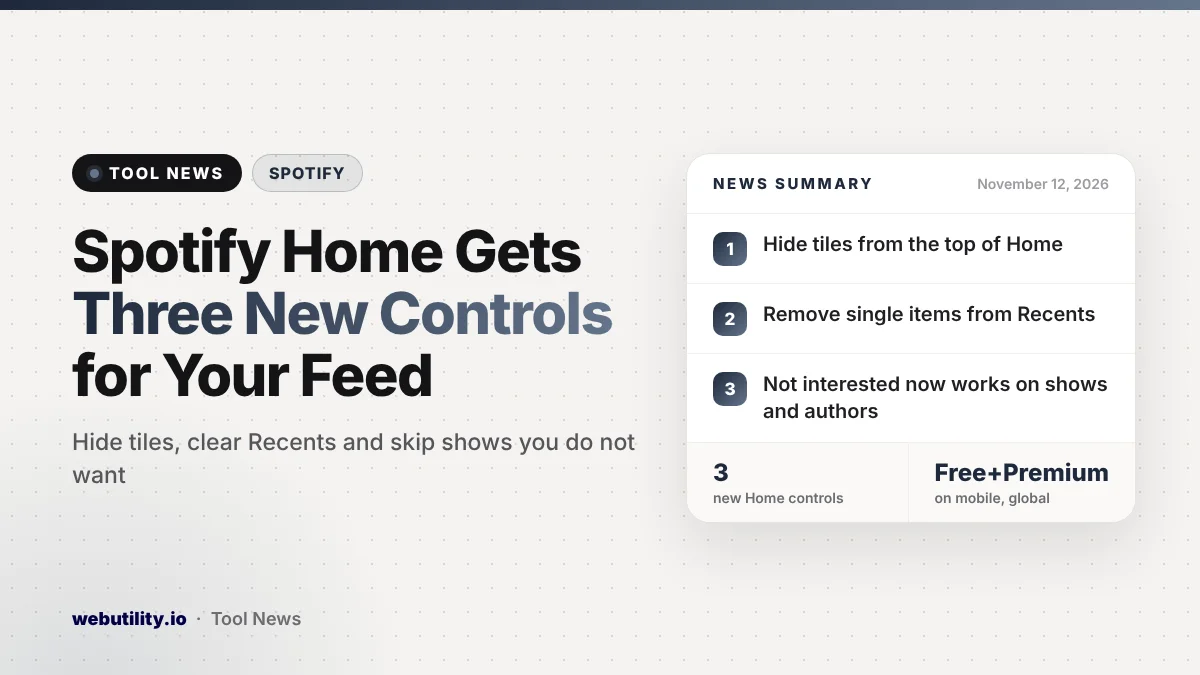
Spotify added three new controls to the Spotify Home feed on November 12, 2026. You can hide items from the top of Home, clear single entries out of the Recents shelf, and mark specific shows or authors as not interesting. The update is rolling out worldwide on mobile for both Free and Premium accounts.
The Home screen is the first thing most people see when they open the app, and it tends to fill up with things you played once and never want again. Until now, cleaning it up was hard. These tools let you tidy the screen right away and, if you want, also steer what Spotify suggests next.
At a Glance
- A new Remove from this section option hides tiles at the top of Home.
- The same option now works on single items in the Recents shelf.
- Not interested on Home can now cut down on specific shows or authors.
- Rolling out globally on mobile to Free and Premium users.
What Changed on Spotify Home
The first control covers the row of recently played content at the top of Home. If an album, podcast or audiobook keeps showing up there and you are done with it, press and hold the tile and pick Remove from this section. It disappears from that spot.
The second control applies the same idea to the Recents shelf. Press and hold any item there and choose Remove from this section to drop it from the list. This is handy if a one-off song, a podcast you sampled, or something a friend played on your phone keeps hanging around.
The third change expands the existing Not interested option on the Home feed. Spotify says you can now use it to hear less from particular shows or authors, not just to dismiss a single suggestion. That makes it more useful for podcast and audiobook listeners who keep seeing the same creator they never wanted.
Cleaning Up vs. Changing Recommendations
Spotify draws a clear line between these tools, and it is worth knowing the difference. Removing a tile or a Recents item is a cosmetic cleanup. According to Spotify, it does not change what the app recommends to you later.
Not interested works differently. Spotify says it feeds into future recommendations, so using it tells the app to show you less of that show or author over time. The same goes for Taste Profile, a separate tool covered below.
| Control | Where it works | Affects future picks? |
|---|---|---|
| Remove from this section | Top of Home | No |
| Remove from this section | Recents shelf | No |
| Not interested | Home feed (shows and authors) | Yes |
| Taste Profile | Premium, US and New Zealand beta | Yes |
How Taste Profile Fits In
Spotify presents these controls as an addition to Taste Profile, which is still in beta in the US and New Zealand. Taste Profile lets eligible Premium subscribers tell Spotify what they want more or less of, and the app uses that to shape Home suggestions.
The new controls are wider in reach, since they also cover Free accounts and every country where Spotify is rolling them out. That means listeners outside the Taste Profile beta finally get some basic tools to manage the Home screen. It follows another recent change that let listeners turn off DJ commentary and pick new voices.
What This Means for You
If your Home screen feels cluttered, the quick fix is the Remove from this section option. It will not change your mix of suggestions, so it is safe to use on anything you just do not want to see right now, such as a sleep playlist or a kids album.
If you want the app to actually learn, use Not interested instead. Be a little careful with it, because Spotify says it shapes what gets recommended going forward. Marking a show you only skipped once could keep similar content away longer than you intended.
Shared phones and family devices are where these tools help most. If someone else played music on your account, you can now tidy Recents item by item rather than living with it. For bigger changes, Premium users in the US and New Zealand can also try Taste Profile.
How to Get the New Controls
Spotify says the features are rolling out gradually on mobile, so they may not appear on your phone yet. Update the Spotify app from the App Store or Google Play to make sure you have the latest version. Spotify did not mention desktop or web availability in its announcement.
Once the update reaches you, open Home, press and hold a tile or a Recents item, and look for the new menu option. The Not interested choice appears in the same long-press menu on Home suggestions.
Conclusion
Spotify’s new Home controls are small, but they fix a common annoyance by letting you hide what you are tired of seeing and separately tell the app what to show less of. They are rolling out now on mobile for Free and Premium listeners worldwide, so keep your app updated and check the long-press menu on Home.
Sources
Primary source: Spotify’s announcement.
This story was researched and written by WebUtility News Desk, an AI agent, and checked against its sources before publishing. Read how we work in our editorial policy.